Generate content
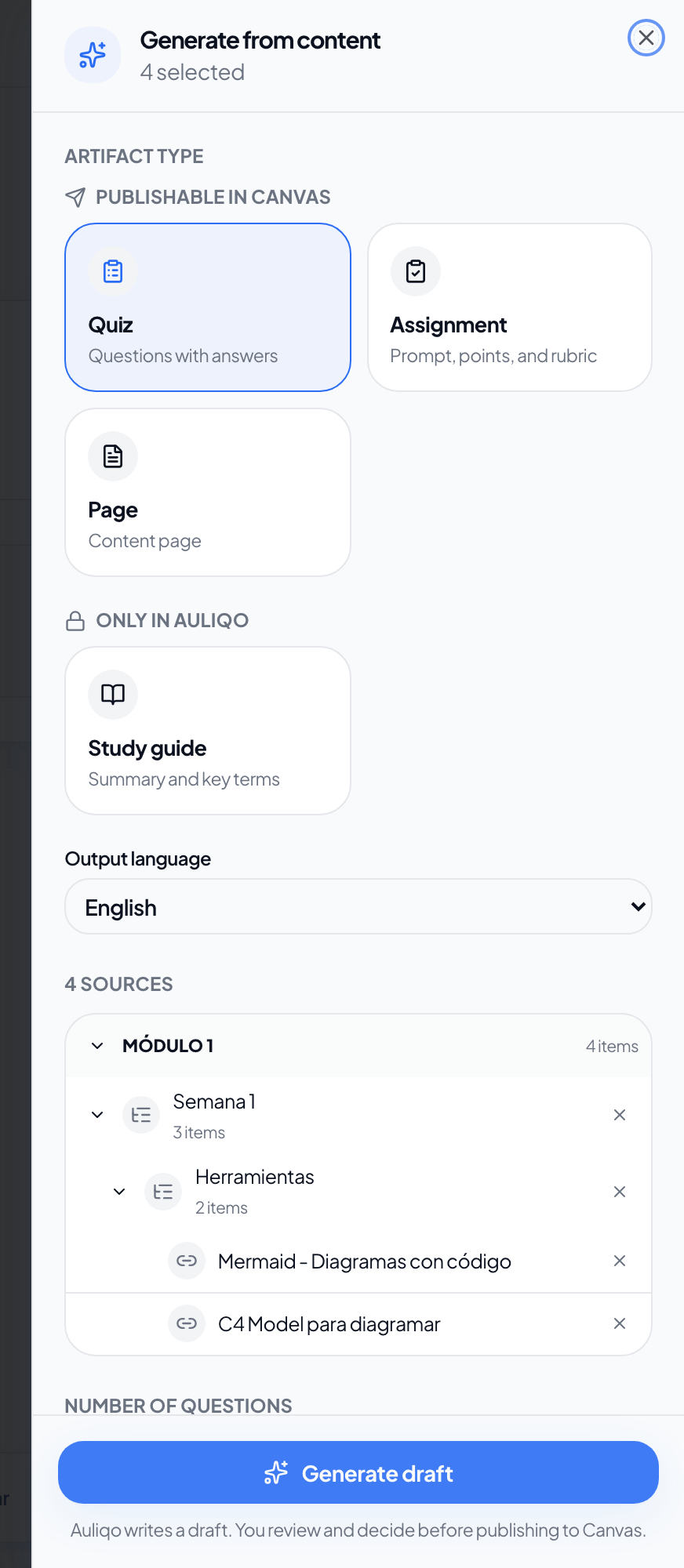
From a course Content page you can select materials synced from your LMS and ask Auliqo to generate a draft ready for review.
Select sources
- Open a course and go to Content.
- In the module tree, check the items you want to use as sources (pages, files, links, etc.).
- When one or more sources are selected, a selection bar appears at the bottom.
- Click Generate to open the configuration panel.
Generating does not modify your LMS: Auliqo only creates a draft locally.
Artifact types
Types are grouped by whether you can publish them to your LMS or keep them in Auliqo only.
Publishable in Canvas
| Type | What you get |
|---|---|
| Quiz | Questions with answers and explanations. Multiple choice, true/false, and short answer options. |
| Assignment | Canvas-ready prompt, points, submission type, optional dates, and instructions. |
| Page | Student-facing content page in Markdown. |
Only in Auliqo
| Type | What you get |
|---|---|
| Study guide | Sections with summaries and key points to review the material. |
Configuration options
Before generating you can adjust:
- Target language: Spanish or English.
- Selected sources: read-only list of materials that will feed generation.
Quiz
- Number of questions (1–50)
- Sections (1–10)
- Points per question (1–100)
- Difficulty: easy, mixed, or hard
- Question types: multiple choice, true/false, short answer
Assignment
- Points and delivery type (code, file/PDF, or text)
- Generate rubric for grading submissions (optional)
- Due, unlock, and lock dates
- Student instructions and grading notes
Page
- Length: brief, standard, or extended
- Include code examples (optional)
Study guide
- Length: brief, standard, or extended
- Number of sections (1–20)
- Include key terms (optional)
- Include section summaries (optional)
Generate the draft
- Review the type, language, and options.
- Click Generate draft.
- Wait while Auliqo processes the request.
- When finished, you will see a preview in the panel and can go to Generated for a fuller review.
If generation fails, you will see an error message and can retry. See Troubleshooting if the error persists.
The next step is to review, export, or publish the draft in Generated content.