Auliqo for instructors
Auliqo helps review your LMS submissions with AI assistance and generate teaching content from course materials. The app syncs courses, assignments, rubrics, and submissions; drafts rubrics when an assignment has none; proposes scores and feedback by criterion; and lets the instructor review, adjust, and publish the final grade to the LMS.
You can also select course materials and generate quizzes, assignments, pages, study guides, or LLM context packages, review them in Auliqo, and publish supported types to your LMS.
Canvas is the first supported LMS platform. Support for Moodle and Google Classroom is on the way. See Connect your LMS for the overview and Canvas LMS for Canvas-specific steps.
Recommended workflow
- Create your account and sign in to Auliqo.
- Connect your LMS. Today you can use Canvas: follow Canvas LMS for the institutional URL and access token.
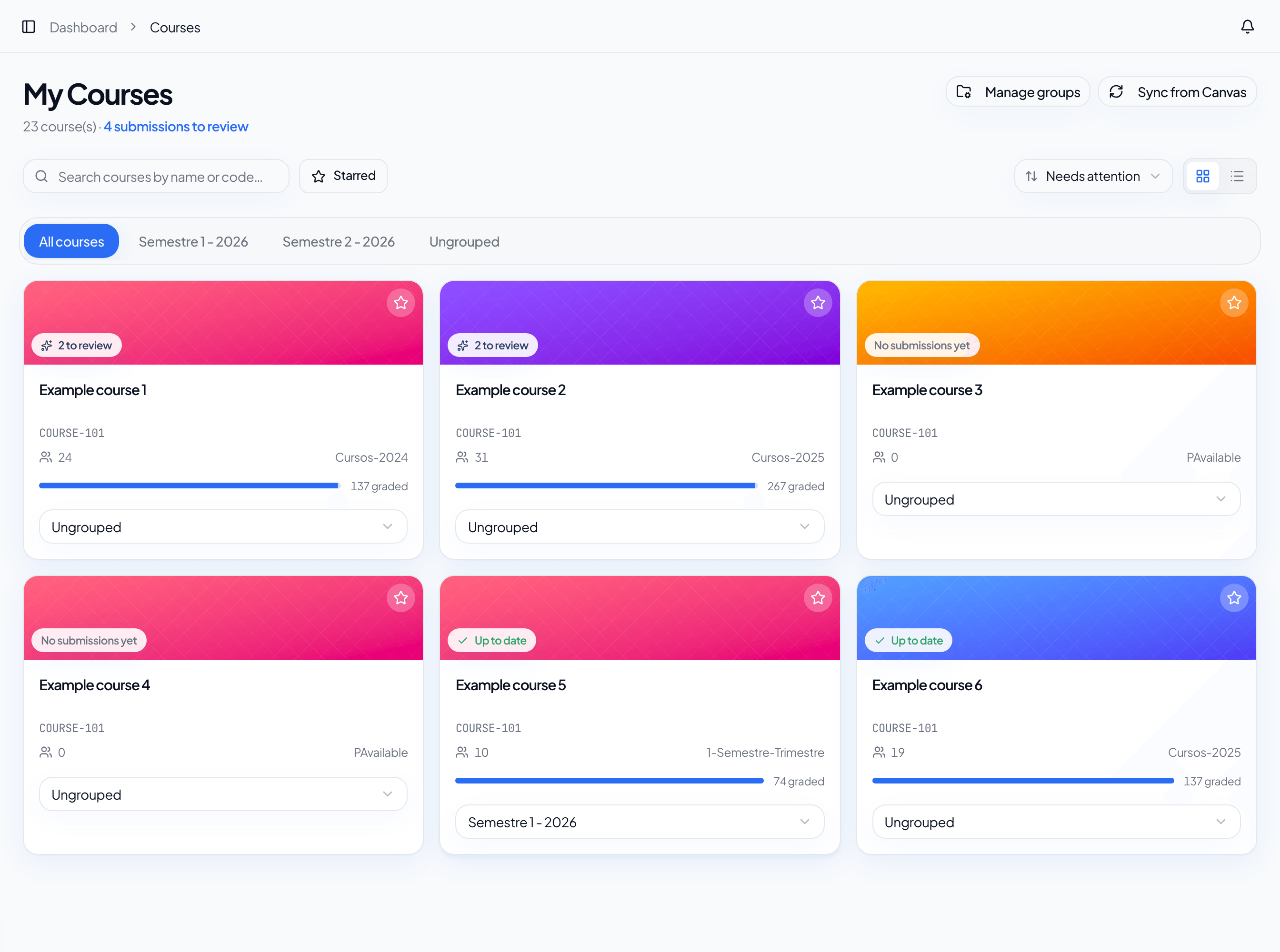
- Open Courses and sync if you need recent changes.
- Open an assignment and check whether it already has a rubric.
- Generate, import, or edit the rubric before using AI review.
- Run AI review for one submission or for selected submissions in bulk.
- Review criteria, warnings, scores, and comments.
- Save a draft or publish the final grade to your LMS.
Generate course content (optional)
- Open Content inside a course and select modules or pages as sources.
- Choose the artifact type (quiz, assignment, page, or guide) and adjust the options.
- Review the draft in Generated and export or publish to Canvas when applicable.
What the instructor always controls
Auliqo does not automatically publish a final grade just because the AI generated a review. The AI prepares a suggestion; the instructor decides whether to accept, adjust, save, re-review, or publish. The same applies to generated content: drafts stay in Auliqo until you choose to publish them to your LMS.
Before you start
You need access to your LMS (Canvas today), an API token, and available credits for AI reviews. If students submit Google Drive links, also connect Google during onboarding or in settings so Auliqo can read those materials with read-only permissions.