Canvas LMS
Canvas is the first LMS platform supported by Auliqo. This guide covers connection, API tokens, and managing your linked instance.
Required information
To connect Canvas you need:
- Canvas base URL: for example
https://your-school.instructure.com. - Access token: a personal token generated from your Canvas account.
The URL must use https://. The token is stored securely and used to sync courses, assignments, rubrics, submissions, and publish grades or generated content.
Create a token in Canvas
- Open Canvas with your institutional account.
- Go to Account, then Settings.
- Find Approved Integrations.
- Create a new access token.
- Copy the token and paste it into Auliqo.
Canvas only shows the complete token once. If you lose it, create a new one.
Connect from Auliqo
- Open Auliqo.
- During onboarding or in Settings → Connections, choose Canvas LMS.
- Enter the Canvas base URL.
- Paste the access token.
- Confirm the connection.
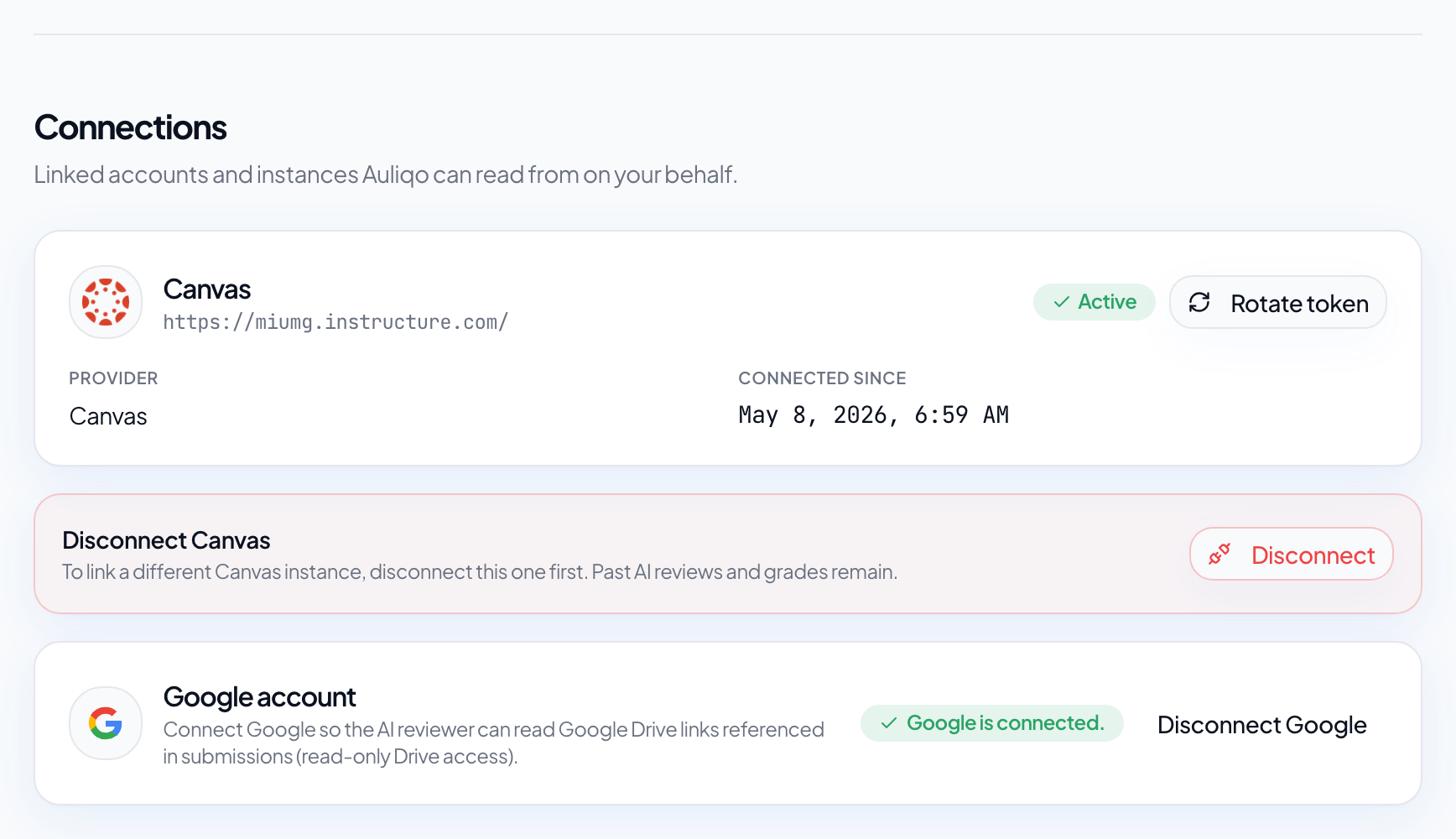
When the connection is active, you will see an Active status and a Rotate token option if you need to renew without disconnecting.
Change instance or token
If you need to link another Canvas instance, disconnect the current one from Settings → Connections. Previous AI reviews, grades, and content drafts remain in Auliqo.
Publish to Canvas from Auliqo
In addition to grades, Auliqo can publish quiz, assignment, and page drafts to Canvas as unpublished items. You review the draft in Auliqo, publish to Canvas, then activate it in Canvas when ready. See Generated content for the full workflow.