Generated content
The Generated library collects all drafts and published artifacts for a course. From here you review content, regenerate it, export it, or publish it to Canvas.
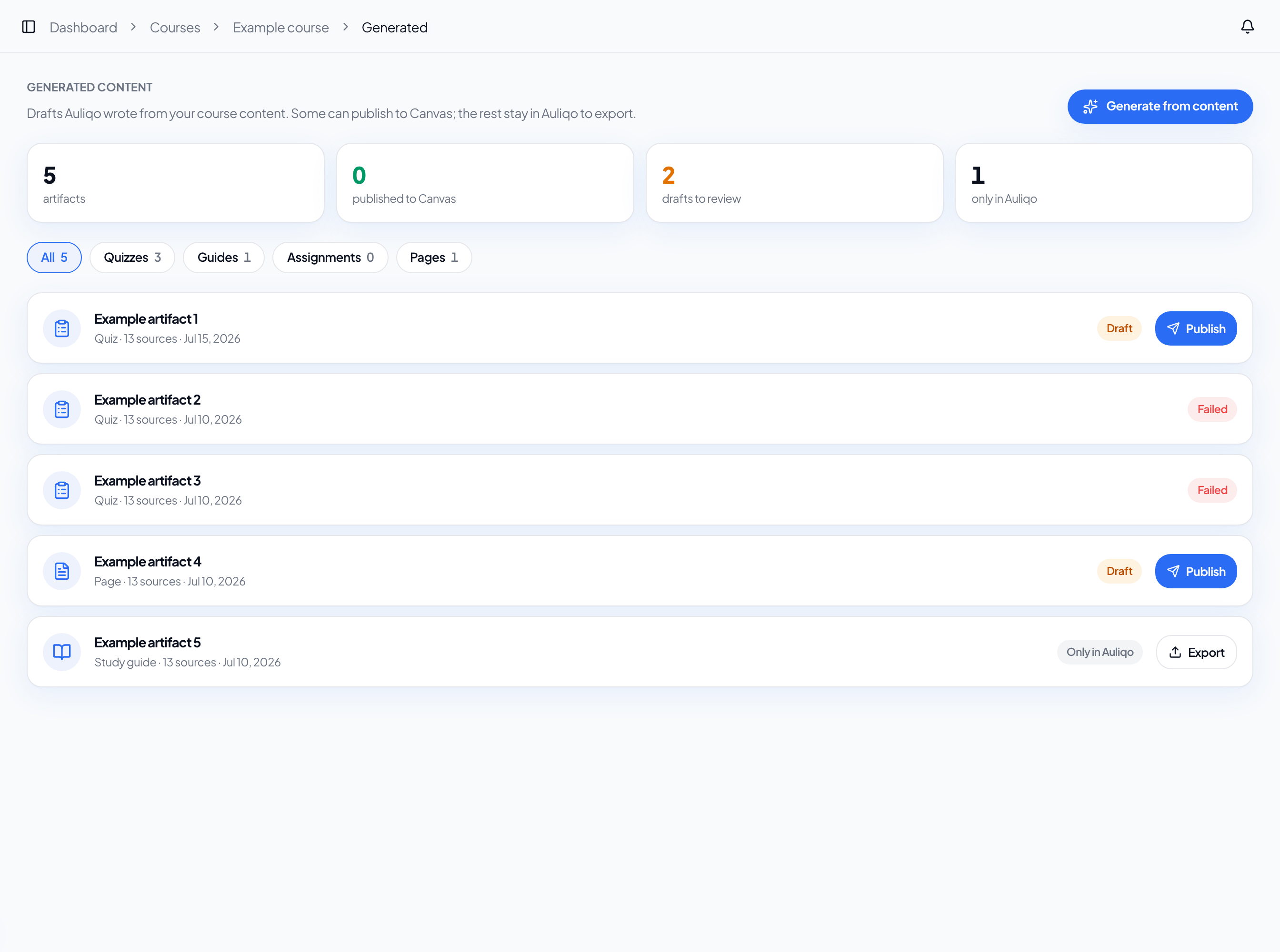
Summary and filters
At the top you will see cards for:
- Total artifacts
- Published to Canvas
- Drafts to review
- Only in Auliqo (guides)
Use the filters to show only quizzes, guides, assignments, or pages.
Statuses
| Status | Meaning |
|---|---|
| Generating | Auliqo is processing the request. |
| Failed | Generation did not complete. You can regenerate. |
| Draft | Ready for review. You can publish to Canvas if the type supports it. |
| Published to Canvas | Already exists in your LMS as an unpublished draft. |
| Only in Auliqo | Guide: exportable, not LMS-publishable. |
Review a draft
Click a row to open the review panel.
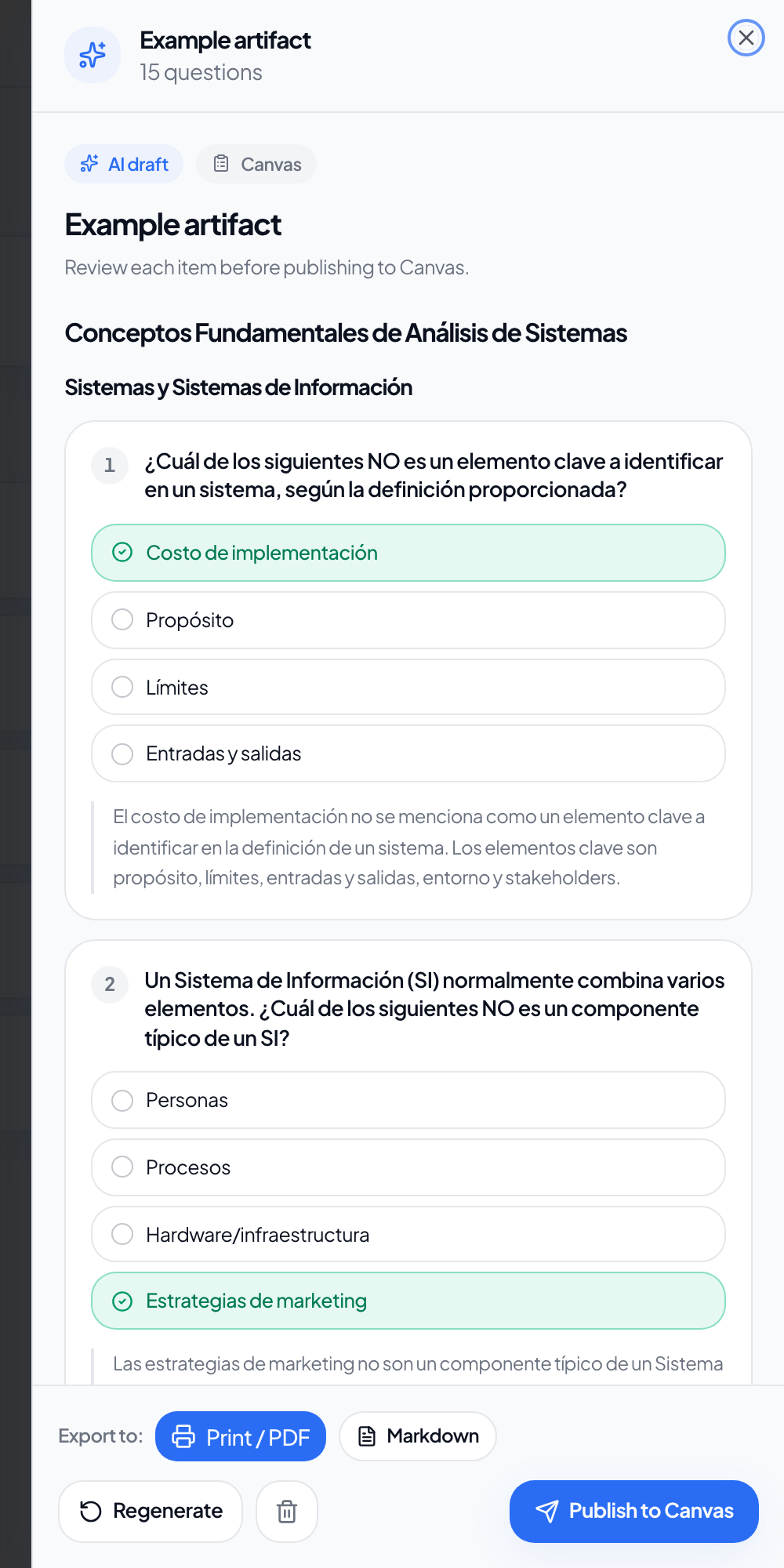
From the panel you can:
- View the full preview by type (quiz questions, page body, guide sections, etc.).
- Regenerate with the same sources and configuration (the previous draft is archived).
- Archive to remove it from the library. If already published to Canvas, the item remains in your LMS.
- Publish to Canvas for quizzes, assignments, and pages.
- Export when generation completed successfully.
Publish to Canvas
Quizzes, assignments, and pages are published to Canvas as unpublished drafts. Auliqo does not automatically make them visible to students.
- Open the artifact review panel.
- Click Publish to Canvas.
- When finished, you will see an Open in Canvas link to review the item in your LMS.
- Publish or adjust from Canvas when ready.
Study guides are not published to Canvas; export them from Auliqo instead.
Export
| Type | Markdown | JSON | |
|---|---|---|---|
| Quiz | Student copy and solutions copy | Yes | — |
| Assignment | Yes | Yes | — |
| Study guide | Yes | Yes | — |
| Page | Yes | Yes | — |
Quiz PDFs can optionally include student name and ID fields.
To create new drafts, go back to Generate content.