Rubrics
The rubric defines how Auliqo should evaluate an assignment. You need a saved rubric before starting AI review.
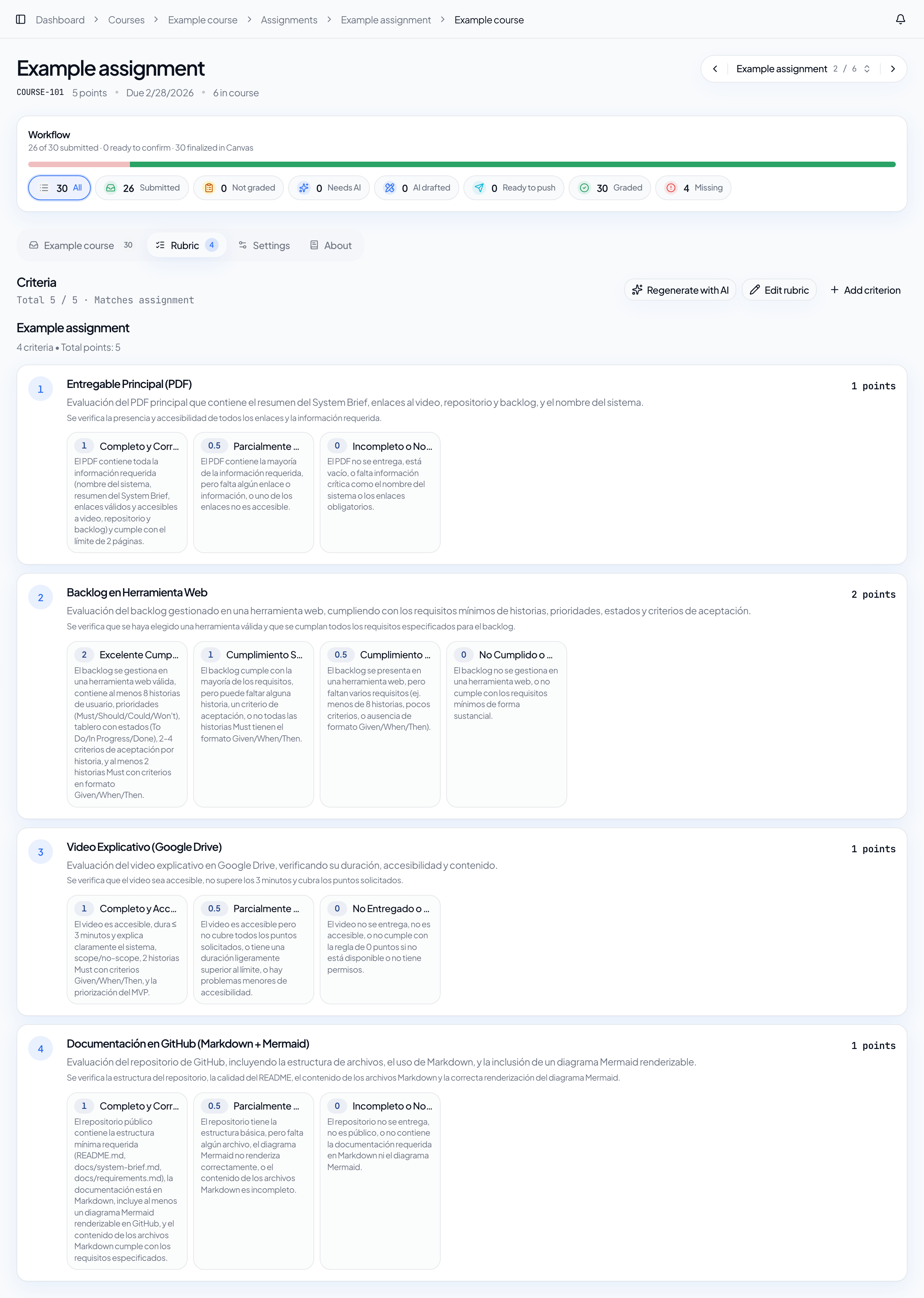
When a rubric is missing
If an assignment has no rubric, Auliqo shows a Missing rubric state. You can resolve it in three ways:
- import or sync a rubric created in your LMS;
- generate an AI draft from the assignment description;
- create a rubric manually in Auliqo.
Generate a rubric with AI
- Open the assignment.
- Go to the Rubric tab.
- Select Generate rubric with AI.
- Add optional instructions if you want to guide the draft.
- Wait for generation to finish.
- Review, edit, and save the draft.
Rubric instructions only affect rubric creation. They do not replace grading instructions used during submission review.
Edit and save the draft
Before saving, review:
- criterion names;
- descriptions;
- points per criterion;
- performance levels;
- whether the total matches the assignment value.
If the draft is not useful, discard it or regenerate it. If a saved rubric already existed, review carefully before replacing it.
Generate rubrics in bulk
From the assignment list, select eligible assignments and queue rubric generation. Auliqo creates a draft for each selected assignment that has no saved rubric. You still need to open each assignment, review the draft, and save it.
Default rubric
Choose a default grading rubric for the assignment. That rubric is used for both single-submission review and bulk review.