AI review
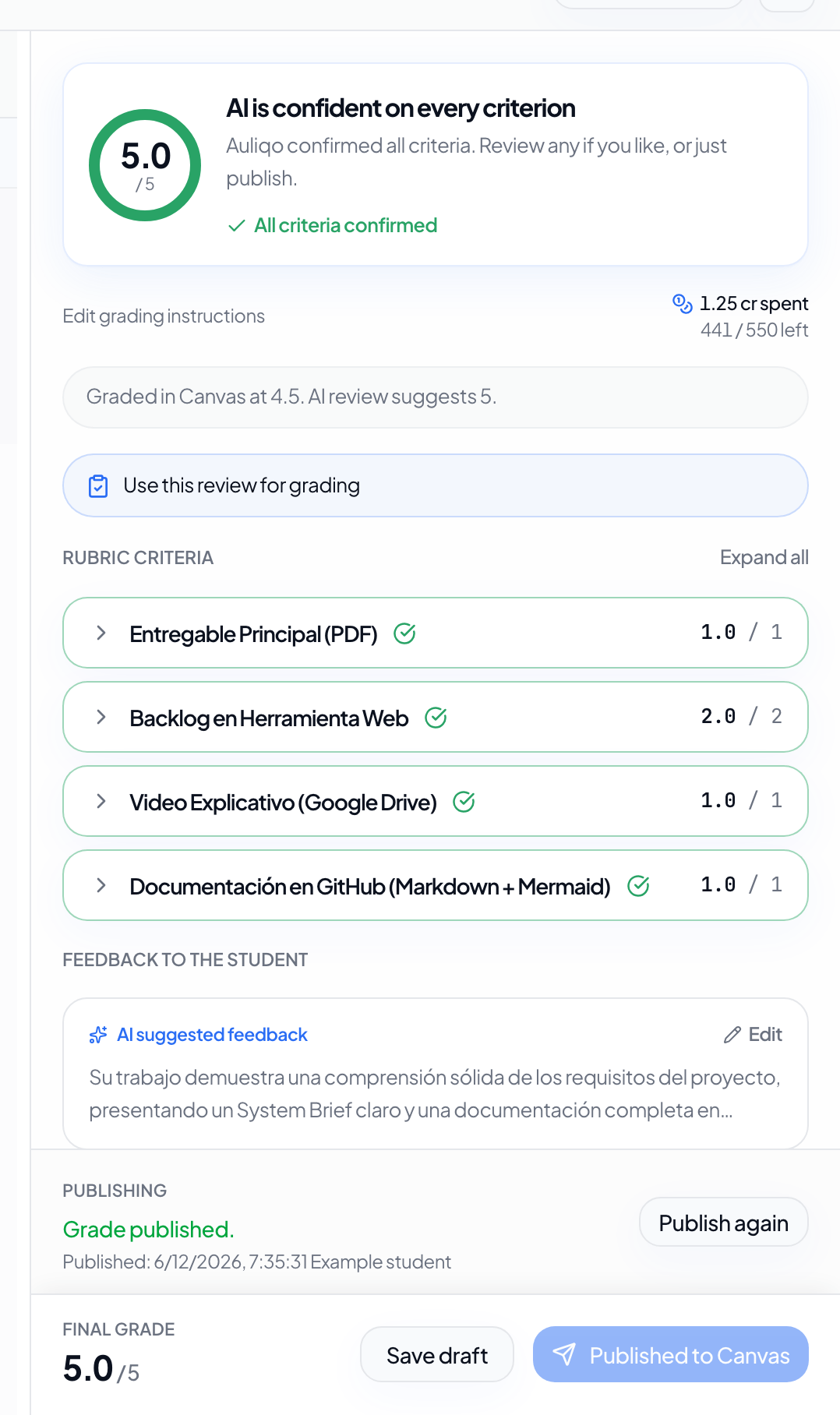
AI review generates a suggestion for each rubric criterion and an overall student-facing comment. The instructor reviews it and decides what to save or publish.
Requirements
Before starting AI review, confirm that:
- the submission exists and is not marked missing;
- the assignment has a default rubric;
- credits are available;
- if the submission uses Drive links, Google is connected.
Run a review
- Open a student's submission.
- Confirm that the selected rubric is correct.
- Select Review with AI.
- Wait for progress to complete.
- Review criteria, scores, reasoning, and comments.
You can run the review again if you changed instructions or need a new draft.
Custom instructions
Use AI grading instructions for assignment-specific rules, such as scoring policies, comment length, or criteria that need extra attention. These instructions are saved on the assignment and reused for future reviews.
Review criteria and warnings
Auliqo can mark criteria that need attention. Pay special attention to:
- evidence that could not be verified automatically;
- scores that do not match the selected level;
- low-confidence criteria;
- late submissions or delivery-policy deductions.
You can edit scores, levels, and feedback before saving.
Save or publish
- Save draft saves the grade in Auliqo without sending it to your LMS.
- Publish grade sends the grade and comment to your LMS.
- Publish again sends a saved or updated grade again.
Auliqo may ask for confirmation if there are flagged items you have not reviewed.